Taking a screenshot of your device
If you want to capture some information that’s displayed on your screen, such as a receipt, it can often be helpful to take a screenshot.
Luckily this is easy on all devices, Windows, Mac, iOS and Android.

Tekee Tim is full of useful hints and tips to get more out of your computers, tablets, smart phones and systems, and online services, so bookmark this page and keep coming back for more tips.
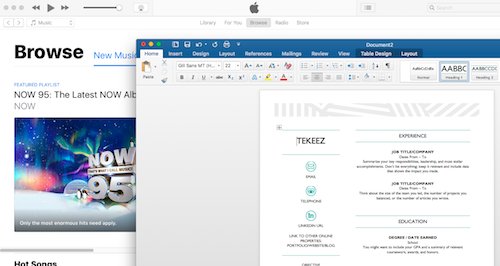
If you want to capture some information that’s displayed on your screen, such as a receipt, it can often be helpful to take a screenshot.
Luckily this is easy on all devices, Windows, Mac, iOS and Android.

If the drive in your laptop or desktop gets too full, this can cause all sorts of problems from a slow computer to issues when trying to save or create new documents. Luckily Windows and macOS include handy new features to show you exactly where your disk space is being used and we'll show you how to use it here.
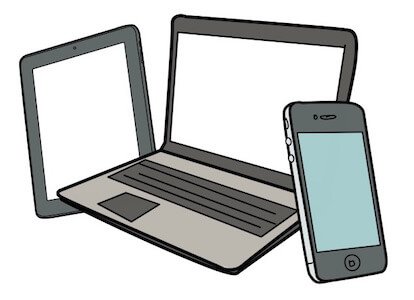
If you ever lose your laptop or mobile device, you don't need to panic. There are things you can do to make sure that no one else can get hold of your data and you can even track your device to try to get it back.
Occasionally, when you send an email you might get an email back telling you that it couldn't be delivered. There are many reasons why an email fails to get delivered. The return email will usually tell you what the problem is and we'll run through a few of the more common reasons here.
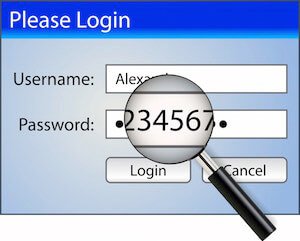
These days we all have passwords for everything and they all need to be unique, secure and cryptic but easy to access when you need them.
For years now we've been using and recommending 1Password as an easy way to create, store and enter passwords that match all the requirements above.

Whether you're writing an email or a document on your Mac or Windows PC, you'll often need to correct typos or move words or whole sentences around or add an underline, bold or italic for emphasis.
We’ll show you how to do the essentials below, using Word for Mac and Windows.
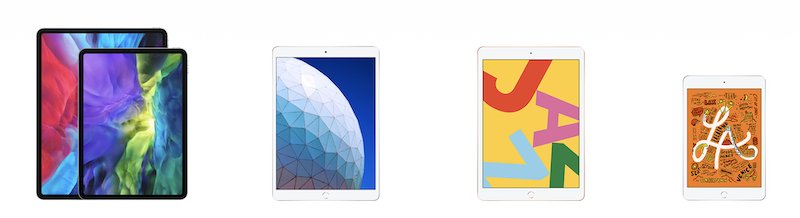
Apple are due to release iPadOS on Tuesday 24th September and this introduces some big changes for the iPad. Here we'll run through some of the bigger changes.
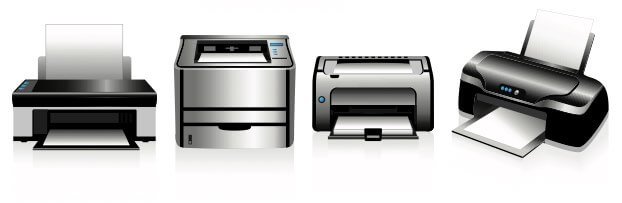
If you have more than one printer, perhaps a mono laser for letters and an inkjet for photos, you will often print to one of them more often than the other and selecting the correct printer each time can become annoying.
On both Windows and Mac you can set the default printer easily so when you print you don’t need to change anything.
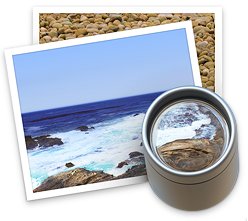
If you're sending photos or PDFs to people it can be very helpful to add your own annotations, whether it's to give someone directions or point something out in the photo. This is very easy to do using Preview on the Mac and below we'll show you how to do it.

If you ever need to reset your Mac back to factory settings, for example, if you're upgrading to a new Mac and passing your existing one to someone else, it's very important to make sure that all your files and settings are removed from your Mac before giving it to anyone else.
This tip will show you how to reset your Mac completely so it's safe to hand over to a new user. Please note that this only works on macOS 12 Monterey and newer.
The built in Notes app on iPhone, iPad and iPod touch can be a very powerful tool, it's also very easy to use so we thought we'd run through some of the more advanced things that Notes can do.

Various apps on your mobile devices and Windows and Mac computers need different permissions in order to operate. Skype for example will need permission to access the camera and microphone. We'll show you here how to check what app is using what permissions, and how to change it.


Tekeez support both PC/Windows users and Mac users equally, so whether you have a Mac or a PC we can help.
Tekeez are proud to have been providing legendary IT Superhero services and support for 30 years, since 1994.
Why not try our services and discover the secret of our success?